
Your picture guide · First member release
From your shop
to your next connection.
Five simple steps through DigitEMB Network. The pictures use fictional businesses on an isolated test copy.
Explore the five stepsMembership is subject to the launch status shown on the home page. These pictures explain the prepared member experience.
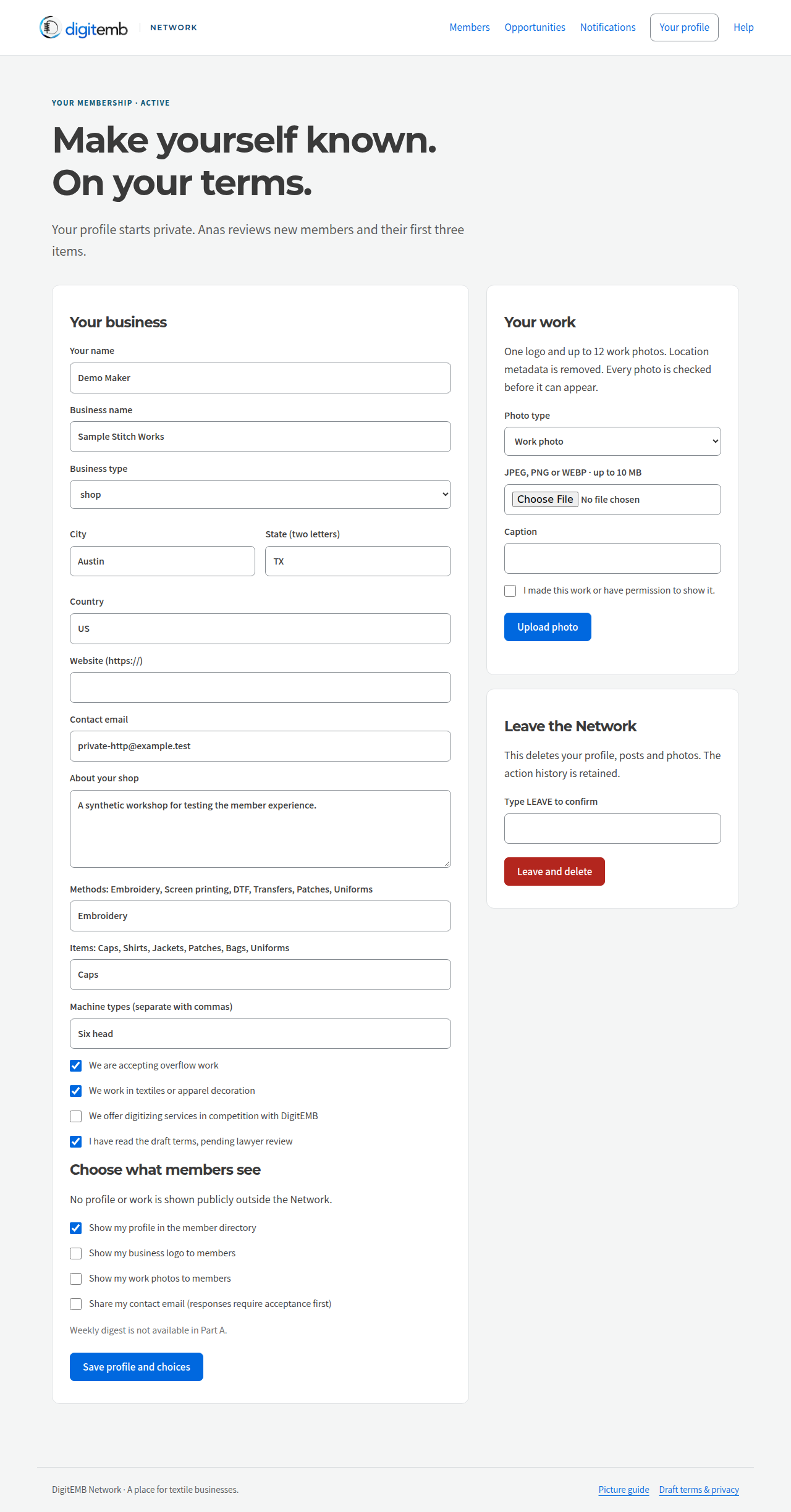
Introduce your business
After signing in through your DigitEMB account, open Your profile. Add your shop name, location, methods, items and equipment. Confirm that you work in textiles and read the membership terms.
Privacy first: profile, logo, work photos and contact email each have a separate sharing choice. All start private.
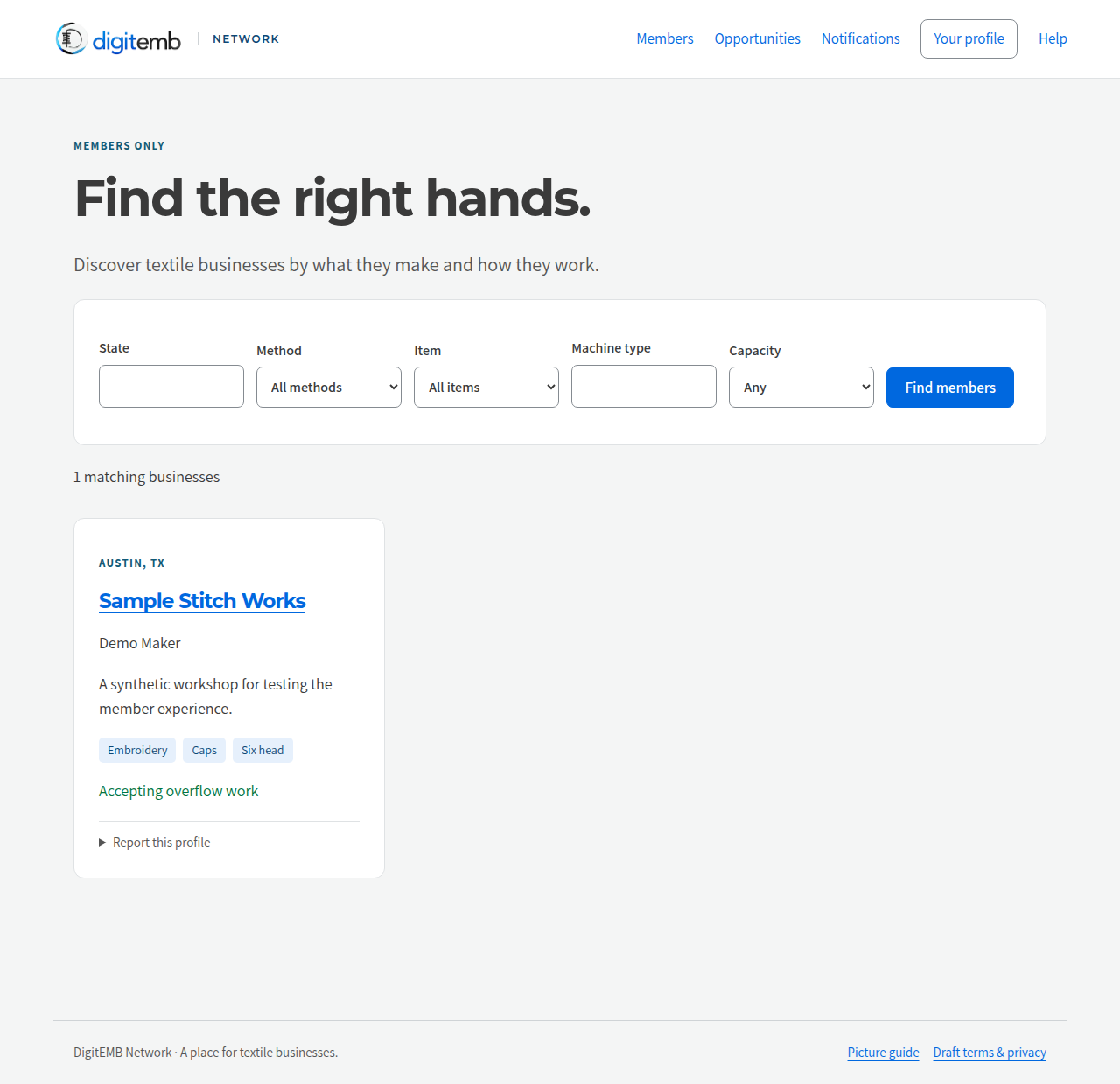
Find the right partner
Open Members. Filter by state, method, item, machine type or availability for overflow work. Open a business to learn what it does.
A business appears only after the required review and its directory-sharing permission. These pictures show fictional test businesses.
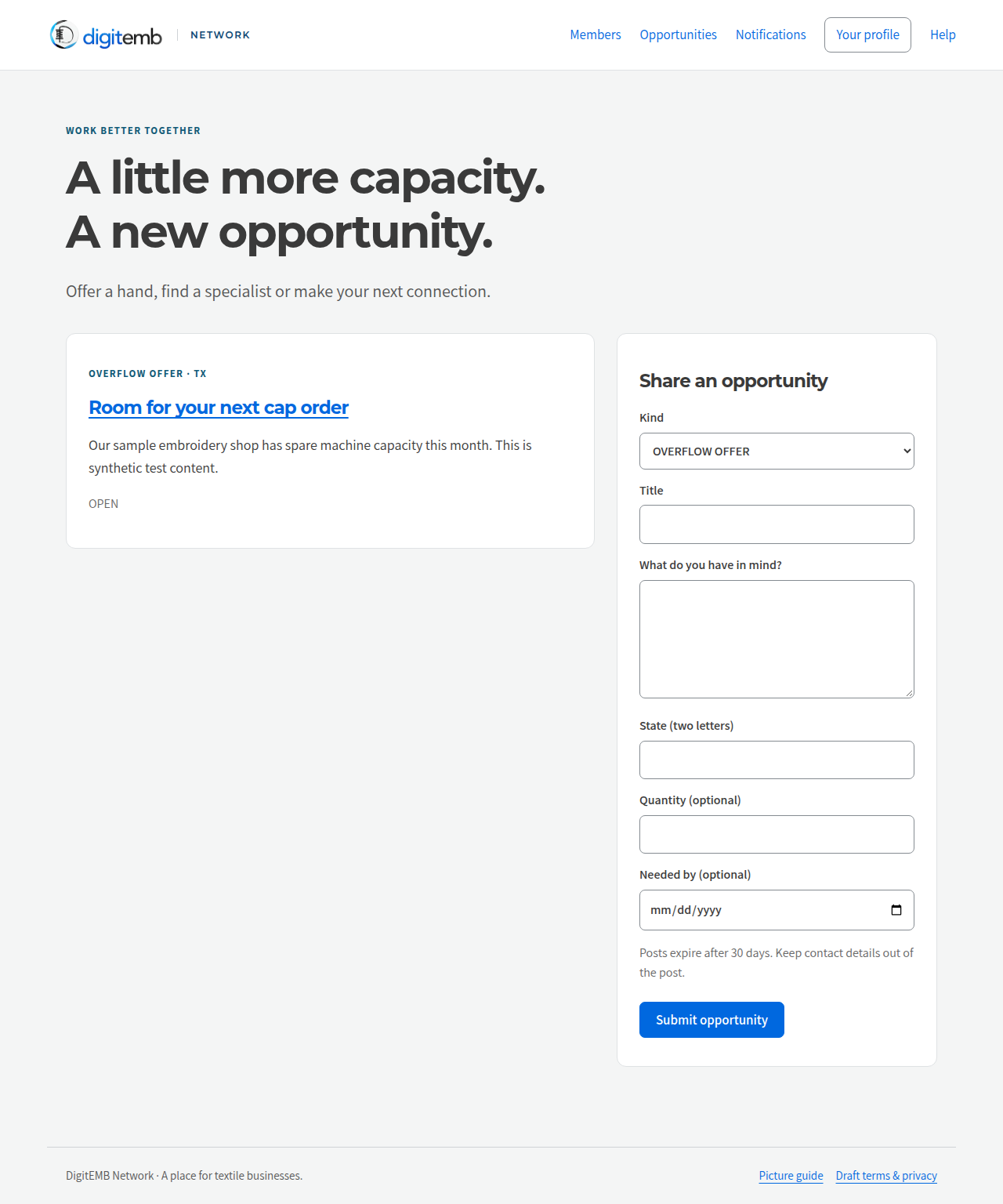
Share an opportunity
Open Opportunities to find or offer work. Choose the type, describe what you need, and add a quantity or required date if helpful. Keep contact details out of the post.
Posts expire after 30 days. Early submissions wait for host review before other members can see them.
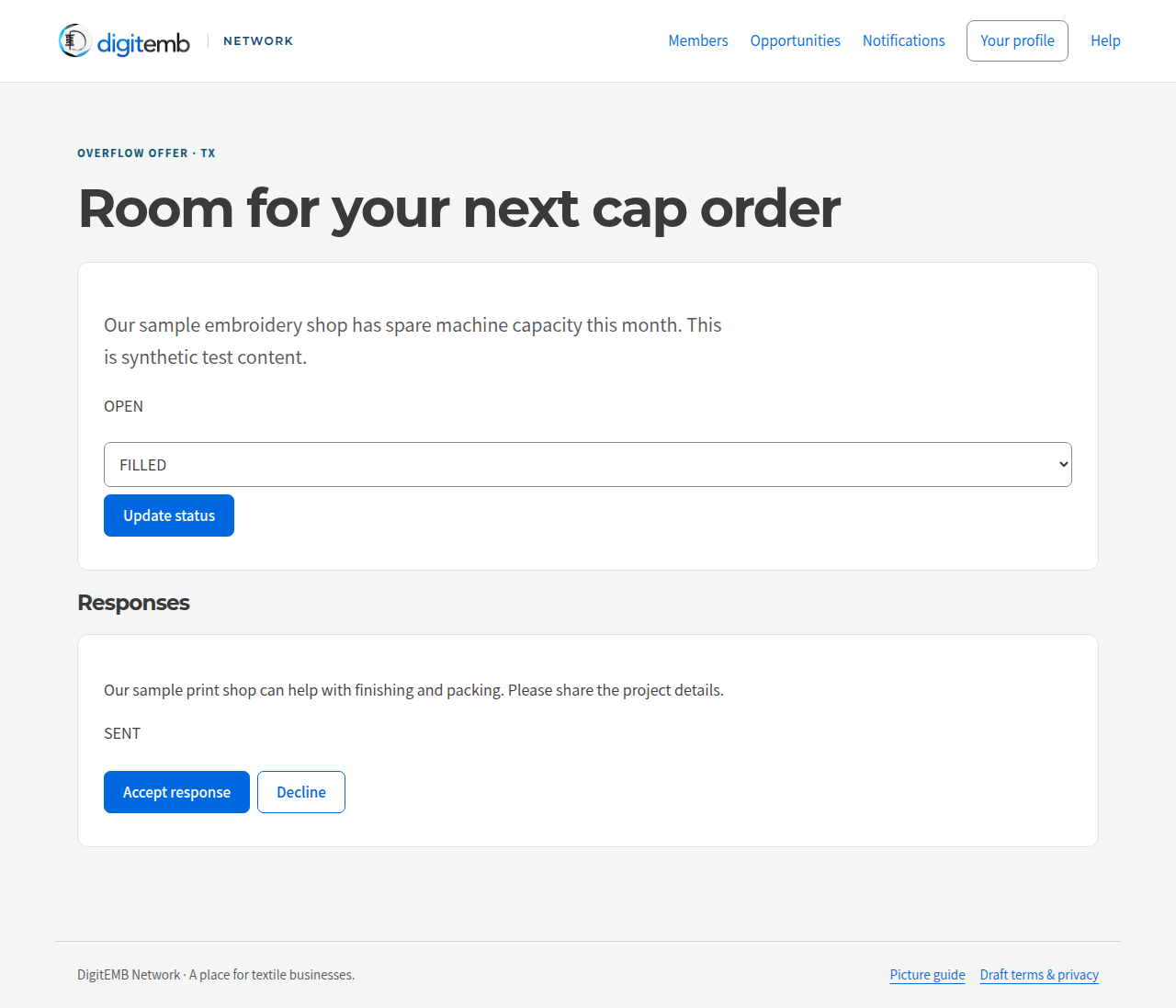
Accept a response, then connect
Open your opportunity to read responses. Accept the response you want to follow up on. Contact email appears only after acceptance and only while that person’s contact-sharing choice is on.
You agree on the work directly. The Network does not collect project payments or send private messages in this release.
Keep track of what happens
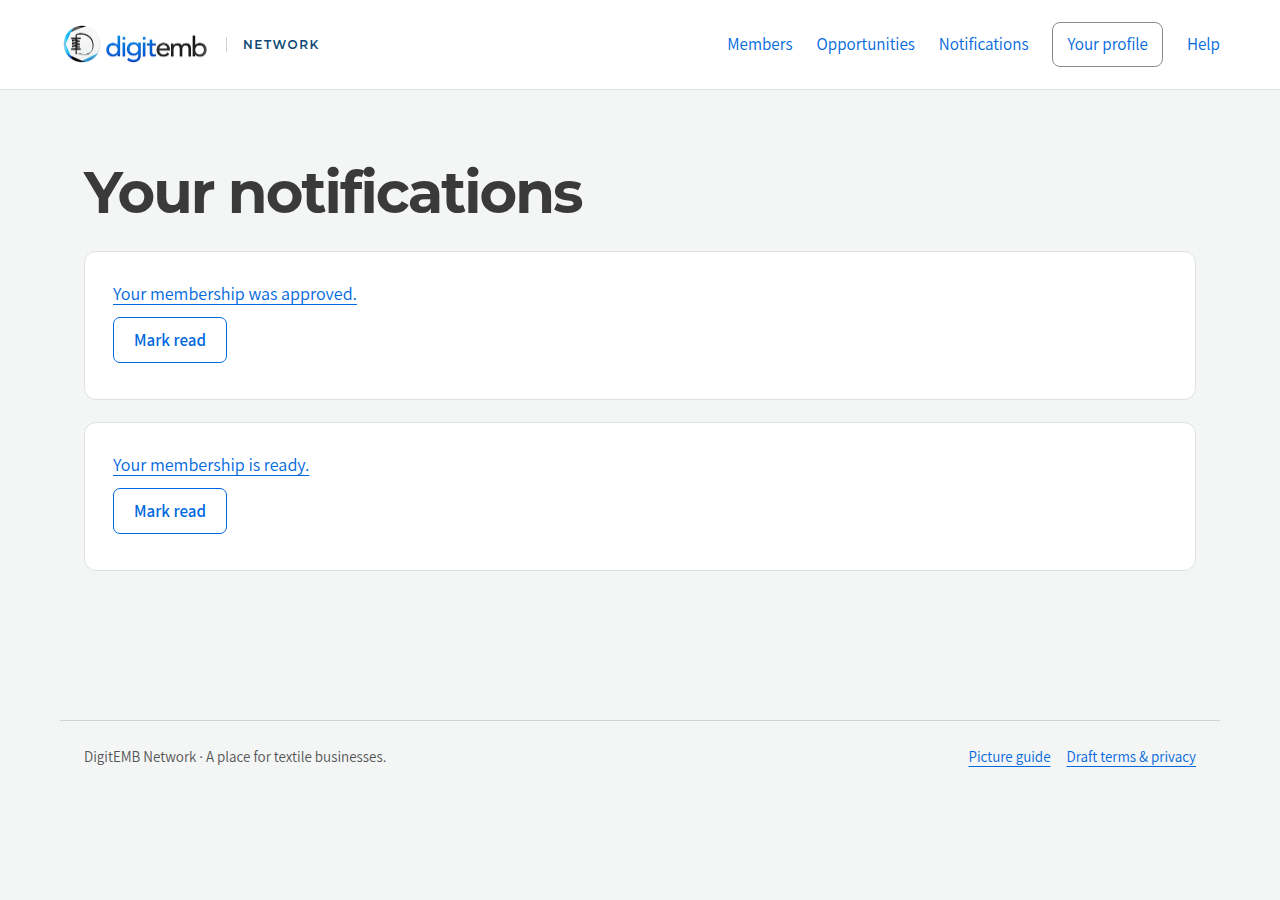
Open Notifications for membership and opportunity updates. Follow an update to the relevant screen and mark it as read.
These are in-app updates. Email delivery and a weekly digest are not connected in the first release.
Your work. Your choices.
Photos need safety checks and the required review. You can withdraw sharing permission, remove photos or leave from Your profile. Use Report on a profile or opportunity to ask Anas to review a concern.
What comes later?
The broader browser demo includes community posts, groups, events and creator ideas. These remain sample experiences and are separate from this first member release.
Explore future ideas with sample data